How to Import Bank Statements into QuickBooks Online (2026 Guide)

Quick Answer
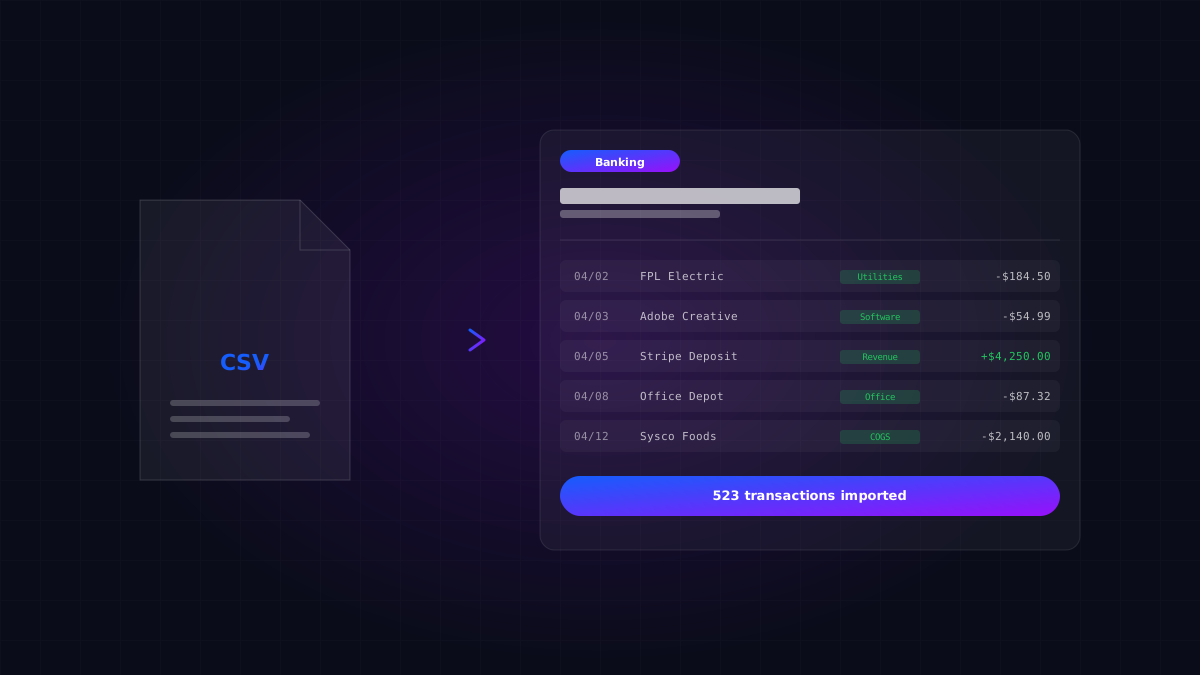
To import a bank statement into QuickBooks Online, navigate to Banking → upload from file, then select your CSV, QBO, OFX, or QFX file. Map your columns to the QBO fields (date, description, amount), and review imported transactions before adding them to your register. The maximum file size is 350KB and statements must be from the last 90 days for some methods. For older transactions or when bank feeds aren't available, you'll need to convert your bank's PDF or Excel statement to CSV first.
Key Takeaways
- QuickBooks Online supports CSV, QBO, OFX, and QFX file formats for bank statement imports
- The native upload tool has a 350KB file size limit and 1,000 transaction limit per import
- CSV imports require specific column formatting (date, description, amount)
- Bank feeds are usually preferred but break frequently — manual import is the backup
- Categorization is still required after import unless you're using AI tools or bank rules
- The complete process takes 15-30 minutes for a typical month if everything works
Bank feeds are supposed to handle this automatically. They usually do. But every bookkeeper knows that moment when a bank feed silently stops working, or when you onboard a new client who needs months of historical transactions imported, or when your bank simply doesn't support QuickBooks' direct connection.
When You Need to Import Manually
Use manual import when: Your bank doesn't support QuickBooks' direct connection. The bank feed has been broken for more than a few days. You need historical transactions older than what bank feeds provide (typically 90 days). You're onboarding a new client and need a full year of bank activity. Your bank temporarily disabled the connection. You need to import transactions from a closed account.
Fix the bank feed instead when: The feed broke recently and you can probably reconnect. It's an ongoing issue with a major bank where reconnection usually works. You'll need ongoing transaction syncing anyway.
Supported File Formats in QuickBooks Online
QBO format (QuickBooks Online's preferred). The cleanest option when available. Some banks let you download statements directly in QBO format. These import without needing column mapping or formatting changes.
QFX format (Quicken Financial Exchange). Common format from major banks like Chase, Wells Fargo, and Bank of America. Imports cleanly into QBO most of the time.
OFX format (Open Financial Exchange). Industry-standard financial data format. Most banks support this even when they don't support QBO format directly.
CSV format (Comma-Separated Values). The universal fallback. Every bank can export CSV. Requires manual column mapping and often has formatting quirks.
Order of preference: QBO > QFX > OFX > CSV. The first three import with minimal work. CSV requires the most cleanup.
Method 1: Importing CSV Files (Most Common)
Step 1: Download from Your Bank
Log into your bank's website. Find the transaction download or export option. Select the date range, CSV format, all transactions. Save the file to your computer.
Step 2: Format the CSV Correctly
QuickBooks Online requires specific CSV formatting. Open the CSV in Excel or Google Sheets and ensure:
Required columns: Date (format: MM/DD/YYYY), Description, Amount (single column with negative for withdrawals, OR two columns for debits and credits).
Remove: Header rows above the data, footer rows below the data, running balance columns, any empty rows or columns.
Format requirements: No commas in dollar amounts, no special characters in descriptions, date format must be consistent throughout.
Step 3: Upload to QuickBooks Online
- Go to Banking → Banking
- Click the Link account dropdown and select Upload from file
- Click Browse and select your cleaned CSV
- Click Continue
Step 4: Map Your Columns
QuickBooks will ask you to identify which column is the date, description, and amount. Map each column to the corresponding QBO field. If there's a header row in your CSV, check the box that says "First row in CSV file is the header."
Step 5: Select the Bank Account
Choose which bank account in QuickBooks these transactions belong to. If you haven't created the bank account yet, do that first.
Step 6: Review Imported Transactions
QuickBooks will show you the transactions before final import. Review for correct dates, correct amounts, reasonable descriptions. If anything looks wrong, cancel and check your CSV formatting. Click Yes to confirm the import.
Step 7: Categorize the Transactions
Imported transactions land in the "For Review" tab. You'll need to categorize each one — assigning it to the correct account in your chart of accounts.
Method 2: Importing QBO/QFX/OFX Files
These formats are easier than CSV because they include account and category information. Download in QBO, QFX, or OFX format from your bank, then upload via Banking → Banking → Link account → Upload from file. Match to bank account, review, and confirm. The advantage over CSV: no column mapping, less cleanup, more accurate descriptions.
Method 3: Manual Entry (For Small Volumes)
For just a few transactions, manual entry might be faster than file imports. Go to the bank account in your Chart of Accounts, click View register, click Add check expense, enter date/amount/description/category, save. This works for under 20 transactions.
Method 4: PDF Bank Statements (No Direct Import)
QuickBooks Online doesn't directly import PDF bank statements. You have two options:
Option A: Convert PDF to CSV first. Use a PDF-to-CSV converter (like ProperConvert, PDFTables, or Excel's PDF import). The conversion is rarely perfect — expect to manually clean up.
Option B: Use AI tools. AI-powered document tools can read PDF bank statements directly and either categorize transactions in QuickBooks or generate properly formatted CSV files for import.
Common Problems and Solutions
Problem: "File is too large" — QBO has a 350KB file size limit and 1,000 transaction limit. Split the file into smaller date ranges or import month by month.
Problem: "We couldn't read the file" — Usually formatting issues. Check that the file is actually CSV, no special characters in headers, date format is consistent, no blank rows.
Problem: Wrong dates — Reformat dates to MM/DD/YYYY in Excel before saving.
Problem: Amounts importing as zero — Currency symbols or commas in the amount column. Use Find and Replace to remove them.
Problem: Duplicate transactions — Date filter your import to exclude already-synced periods. Use the "Exclude" feature in QBO.
Problem: Bank feeds and manual imports show different totals — The bank's exported CSV may include pending transactions or use different "as of" dates. Reconcile against the actual bank statement.
After the Import: Categorization Strategy
Use bank rules. Bank rules tell QBO to automatically categorize transactions matching specific patterns. Set them up for recurring vendors, common transaction types, and tax-relevant categories. Once set up, rules apply automatically to future imports.
Use Intuit Assist for AI categorization. Intuit Assist (built into QBO) can suggest categories based on historical patterns. The accuracy improves over time as Intuit Assist learns your patterns.
Batch categorize similar transactions. Sort imported transactions by description or amount. Categorize all the similar ones at once. Most months, 60-70% of transactions fall into 5-10 categories that you can batch-categorize quickly.
Review before reconciling. Catching errors before reconciliation saves significant time later.
How Long This Takes
Single month, ~100 transactions: 1-1.5 hours total.
Single month, ~500 transactions: 3-5 hours total.
Full year of transactions (new client onboarding): 10-25 hours total.
When AI Tools Help
For bookkeeping firms managing multiple clients with frequent bank statement imports, AI tools can dramatically reduce the time required.
For a small bookkeeping firm processing 10 client bank statements per month, AI tools typically reduce total time from 30-50 hours per month to 5-10 hours. For new client onboarding (importing a full year of historical transactions), AI tools can reduce a 25-hour task to 3-5 hours.
Where JournalLink Fits
JournalLink AI handles bank statement imports as part of broader document automation. We accept bank statements in any format — PDF, CSV, Excel, even photographed scans — and produce categorized transactions ready to post to QuickBooks Online using your real chart of accounts and historical patterns.
We're built for the moments when bank feeds aren't enough — historical onboarding, when feeds break, banks that don't support QBO direct connection, and high-volume firms managing multiple clients.
The Bottom Line
Bank statement imports into QuickBooks Online work well when you understand the specific requirements — the file format expectations, the column mapping rules, the file size limits. Once you've done a few imports, the process becomes routine.
The real time investment isn't the import itself. It's the categorization that follows. For high-volume clients or new client onboarding, this categorization work can consume days of bookkeeper time per month.
Master the manual process first. Then add automation when the volume justifies it. That's the workflow that builds both skill and scale.
Want to see JournalLink in action? JournalLink is rolling out to a small group of accounting firms, bookkeepers, and teams handling large or recurring imports. Get on the list →
Automate your accounting process. Import without the manual work.
JournalLink is rolling out to a small group of accounting firms, bookkeepers, and teams handling large or recurring imports.