How to Categorize Transactions in QuickBooks Online (2026 Complete Guide)

Quick Answer
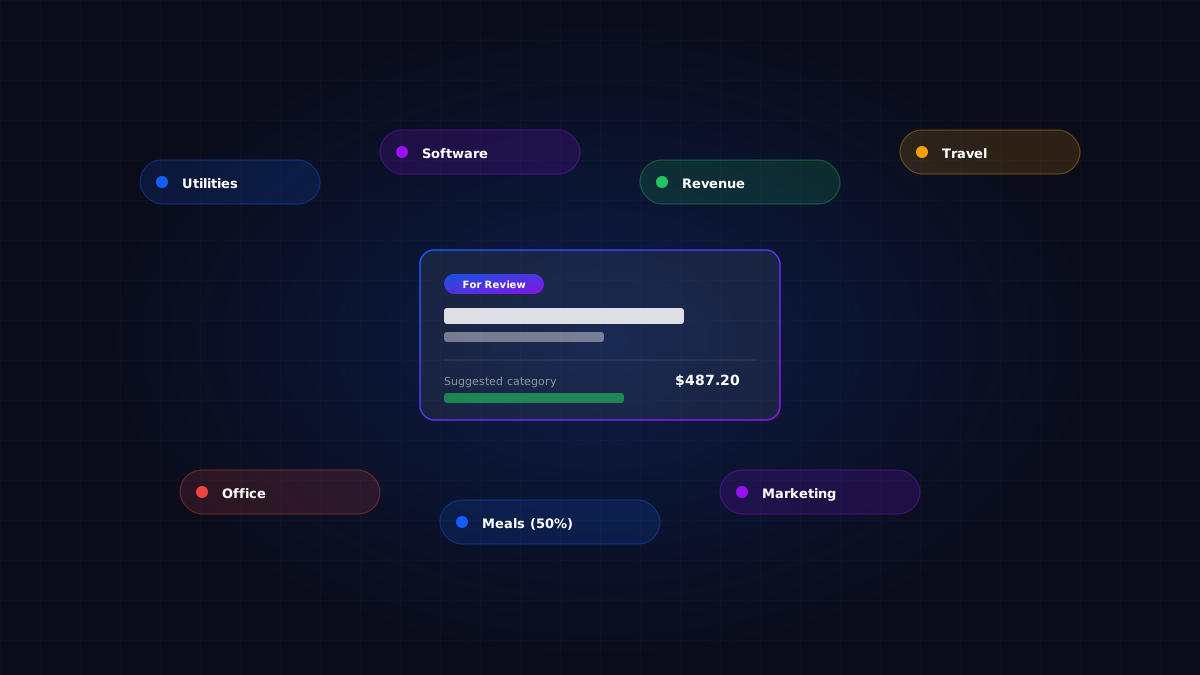
To categorize transactions in QuickBooks Online, go to Banking → For Review, click each transaction, select the appropriate account from your chart of accounts, and click Add. To save time, set up bank rules that auto-categorize recurring vendor transactions, use Intuit Assist's AI suggestions for transactions matching historical patterns, and batch-categorize similar transactions at once. Most bookkeepers process 60-80% of transactions through automated rules and only manually categorize the remaining 20-40%.
Key Takeaways
- Bank rules can auto-categorize 60-80% of routine transactions, saving hours per month
- Intuit Assist (built into QBO) suggests categories based on historical patterns
- Batch categorization handles multiple similar transactions at once
- Wrong categorization affects financial reports, tax filings, and cash flow analysis
- Common mistakes include over-using "Office Expenses," miscategorizing personal expenses, and inconsistent vendor coding
- AI-powered tools can categorize complex transactions that simple rules miss
Categorizing transactions is the daily reality of bookkeeping in QuickBooks Online. Bank feeds pull in transactions automatically, but they don't know whether that $487 charge from Office Depot was for office supplies, a piece of equipment, or a client gift. Someone has to make that decision.
Most bookkeepers spend 30-50% of their daily time on transaction categorization. Done well, it produces accurate financial reports, maximizes tax deductions, and gives clients clear visibility into their spending. Done poorly, it creates messy books that take hours to clean up at year-end and miss tax savings worth thousands.
Why Categorization Matters More Than You Think
Categorization determines your financial reports. Your Profit & Loss report, your cash flow statement, your spending by category — all of it comes from how transactions are categorized.
Categorization affects tax deductions. Some categories are fully deductible. Some are partially deductible (meals at 50%). Some are capitalized rather than expensed. Wrong categorization either inflates deductions (audit risk) or misses legitimate ones (overpaying taxes).
Categorization enables business decisions. A business owner asking "how much are we spending on marketing this year?" needs reliable categorization to get a useful answer.
Categorization is the work that actually requires judgment. Knowing whether a transaction is a repair (expense) or improvement (capitalize) requires accounting knowledge.
Step 1: Set Up Your Chart of Accounts Properly
Standard categories every business needs:
Income: Sales Revenue, Service Revenue, Other Income
Cost of Goods Sold: Materials, Direct Labor, Subcontractors
Operating Expenses: Rent or Lease, Utilities, Phone and Internet, Software Subscriptions, Office Supplies, Office Equipment, Vehicle Expenses, Travel, Meals (50% deductible), Entertainment, Professional Development, Insurance, Legal and Professional Fees, Marketing and Advertising, Bank Fees, Interest Expense, Payroll Expenses, Payroll Taxes, Benefits
Assets (for purchases over capitalization threshold): Equipment, Furniture, Vehicles, Improvements
To create accounts: Click the Gear icon → Chart of Accounts → New. Select Account type, Detail type (this determines tax categorization), enter the account name, save.
Step 2: Categorize Manually (The Basic Workflow)
Navigate to Banking → For Review tab. For each transaction:
- Click the transaction to expand it
- Verify the Date is correct
- Verify or update the Description
- Select the Vendor (or add a new one)
- Select the Category from your chart of accounts
- Add a Memo if helpful
- Click Add to record the transaction
For more complex transactions, you might split the transaction across multiple categories, add Class for class-based reporting, add Customer for billable expenses.
Common transaction types and their categories: Software subscription → Software Subscriptions. Office supplies → Office Supplies. Internet bill → Phone and Internet. Gas for company vehicle → Vehicle Expenses. Lunch with client → Meals (50%). Marketing service → Marketing and Advertising. Bank service charge → Bank Fees. Loan interest → Interest Expense.
Step 3: Use Bank Rules to Automate Routine Categorization
A bank rule tells QuickBooks "when you see a transaction matching this pattern, automatically categorize it this way." Once set up, rules apply automatically to all future matching transactions.
Examples of rules that pay off immediately:
- "FPL Electric" → Utilities Expense
- "Adobe Creative Cloud" → Software Subscriptions
- "Sysco Foods" → Food Cost (for restaurants)
- "Shell" or "Chevron" → Vehicle Expenses
- "Stripe" deposits → Sales Revenue
- "Bank fee" → Bank Service Charges
For most businesses, 5-10 well-crafted rules will auto-categorize 60-80% of transactions.
To create a bank rule: Go to Banking → Rules → New rule. Name your rule. Add conditions (Description contains, Amount is, Bank text contains). Set the action (Transaction type, Payee, Category). Choose Auto-add or Auto-suggest. Save.
Best practices: Start with Auto-suggest for the first 30 days. Use the most specific identifier possible. Create rules for high-volume vendors first. Review your rules quarterly.
Step 4: Use Intuit Assist for AI-Powered Suggestions
Intuit Assist is QuickBooks Online's built-in AI assistant. For transaction categorization, it suggests categories based on historical patterns in your books, vendor name matching, amount and timing patterns, and industry standards.
When you click on an uncategorized transaction in the For Review tab, Intuit Assist often shows a suggested category pre-populated. If the suggestion is correct, you just click Add. If not, you select the right category, which teaches Intuit Assist for future transactions.
Intuit Assist's strengths: Recognizes recurring vendors after a few examples. Learns from your corrections over time. Handles slight variations in vendor names automatically.
Intuit Assist's limitations: Limited to standard categorization. Less accurate for new clients without much history. Can be wrong on transactions that look similar but should categorize differently.
Step 5: Batch Categorization for Efficiency
When you have many similar transactions to categorize, batch operations save significant time:
- In the For Review tab, sort transactions by Description or Amount
- Select multiple similar transactions using the checkboxes
- Click Batch actions at the top
- Select Modify selected or Accept selected
- Set the category, vendor, and other fields
- Apply to all selected
For new client onboarding where you're processing months of historical transactions, batch operations can reduce a multi-day task to hours.
Common Categorization Mistakes
Mistake 1: Over-using "Office Expenses" or "Miscellaneous." When in doubt, bookkeepers sometimes dump transactions into generic categories. Take an extra minute to find the right specific category.
Mistake 2: Inconsistent vendor coding. The same vendor categorized differently in different months creates messy reports. Use rules to enforce consistency.
Mistake 3: Mixing personal and business expenses. For sole proprietors and single-member LLCs, personal expenses sometimes flow through business accounts. These need to be categorized as Owner's Draw, not as business expenses.
Mistake 4: Capitalizing what should be expensed. If your firm has a $2,500 capitalization threshold, a $1,800 computer purchase should go to Office Equipment expense, not as a Fixed Asset.
Mistake 5: Expensing what should be capitalized. A $5,000 computer should be a Fixed Asset and depreciated, not an immediate expense.
Mistake 6: Wrong tax categorization on the Detail type. The Detail type determines tax categorization. Choose carefully.
Mistake 7: Not splitting transactions that need splitting. A $200 office supply order might include $150 of supplies (deductible) and $50 of personal items (not deductible).
Mistake 8: Rules that are too aggressive. A rule that auto-adds anything from "Amazon" to "Office Supplies" will miscategorize Amazon Web Services charges (Software), Amazon advertising (Marketing), and personal Amazon purchases (Owner's Draw).
Industry-Specific Categorization Considerations
Real Estate: Property-specific cost tracking (sub-accounts by property), capitalized vs expensed costs, owner draws vs business operating expenses, property management fees as separate line item, repair vs improvement distinction.
Restaurants and Hospitality: Food cost vs beverage cost separation, labor cost (front-of-house vs back-of-house), equipment vs smallwares, marketing vs advertising distinction.
Construction: Job costing (transactions tied to specific jobs), direct vs indirect costs, labor categorization (W-2 vs 1099), equipment expenses vs capital additions.
Professional Services: Project-based revenue recognition, billable vs non-billable expenses, software vs subscriptions, continuing education and professional development.
When AI Tools Help with Categorization
For high-volume bookkeeping firms managing multiple clients, AI tools can handle categorization that simple bank rules can't.
AI tools work well for: Complex categorization based on context (Amazon AWS vs Amazon retail). Learning each client's specific patterns. Handling vendor name variations automatically. Categorizing based on amount patterns. Detecting and flagging unusual transactions.
AI tools struggle with: First-time clients with no historical patterns. Truly unique transactions. Categorizations requiring specific business context. Complex multi-line splits.
For a bookkeeping firm managing 10-15 clients, AI-powered categorization tools typically reduce daily categorization time from 2-3 hours to 30-45 minutes. For new client onboarding, AI tools can categorize 6 months of historical transactions in 30 minutes versus 8-10 hours manually.
Where JournalLink Fits
JournalLink AI handles transaction categorization as part of broader document automation. We learn your firm's specific patterns per client, suggest categorizations based on historical behavior, and flag transactions that don't match expected patterns for your review.
We're built for firms managing multiple QBO files where categorization patterns vary significantly between clients.
The Bottom Line
Transaction categorization is the daily work that determines whether your books are useful or useless. Done well, it produces clean financial reports, maximizes tax deductions, and gives clients real visibility into their business.
The right approach combines:
- A well-structured chart of accounts that reflects the business's actual operations
- Bank rules that auto-categorize the 60-80% of routine, recurring transactions
- Intuit Assist for AI-powered suggestions on transactions that don't match rules
- Manual review for the 10-20% of transactions that require judgment
- Batch operations for efficiency on similar transactions
- Quarterly rule reviews to keep automation working as the business changes
Master the manual workflow first. Then automate the routine work. Then add advanced AI tools for the remaining complexity. That's the progression that builds both speed and accuracy in modern bookkeeping.
Want to see JournalLink in action? JournalLink is rolling out to a small group of accounting firms, bookkeepers, and teams handling large or recurring imports. Get on the list →
Automate your accounting process. Import without the manual work.
JournalLink is rolling out to a small group of accounting firms, bookkeepers, and teams handling large or recurring imports.