How to Enter a Closing Statement in QuickBooks Online (Complete 2026 Guide)

Quick Answer
To enter a closing statement in QuickBooks Online, create a journal entry that records the property purchase price as a fixed asset, the loan as a long-term liability, capitalized closing costs added to the property basis, and immediately deductible expenses to their respective expense accounts. The entry must balance — total debits equal total credits. For a typical real estate purchase, the property goes to a Fixed Asset account, the loan to Long-Term Liabilities, prepaid items (taxes, insurance) to Prepaid Asset accounts, and one-time fees (recording, doc stamps) split between capitalized basis and expenses.
Key Takeaways
- Closing statements are typically recorded as a single journal entry in QuickBooks Online
- The property purchase price plus capitalized closing costs becomes the cost basis for depreciation
- Loan amounts are recorded as long-term liabilities, not income
- Some closing costs must be capitalized, others can be expensed immediately
- A typical ALTA or HUD-1 statement has 30-50 line items requiring careful classification
- Manual entry takes 1-3 hours; AI tools can reduce this to under 10 minutes
If you've ever stared at an ALTA Settlement Statement or HUD-1 closing document trying to figure out how to enter it into QuickBooks Online, you're not alone. Recording a real estate closing is one of the most complex bookkeeping tasks for property investors and real estate firms.
A typical closing statement has 30-50 line items. Some get capitalized into the property basis. Others get expensed immediately. Some go to liability accounts. Some go to prepaid asset accounts. The wrong classification affects your basis for the lifetime of the property, your depreciation, your capital gains calculation, and your tax bill.
This guide walks through the complete process — from understanding the closing statement, to setting up your accounts in QuickBooks, to entering the journal entry line by line, to handling complex situations.
What Is a Closing Statement (And Why QuickBooks Doesn't Make This Easy)
A closing statement is the document that lists every detail of a real estate transaction — the purchase price, the loan, all closing costs, prorations, fees, and final amounts due. It's prepared by the title company and signed at closing.
There are three common formats:
The ALTA Settlement Statement — Published by the American Land Title Association. Most common in 2026 for residential and commercial transactions. Shows debits and credits in two columns.
The HUD-1 Settlement Statement — Was the standard before 2015. Still used for some commercial and reverse mortgage transactions. Shows both buyer and seller sides.
The Closing Disclosure (CD) — Required for residential mortgage transactions since 2015. Contains similar information formatted differently.
QuickBooks Online doesn't have a native "import closing statement" feature. The CSV import tool can't handle the complexity. The native bill entry doesn't support multiple debits and credits. You have to use a journal entry and manually enter every line.
Before You Start: Set Up Your Chart of Accounts
You need specific accounts in your QuickBooks chart of accounts to record a closing statement correctly.
Fixed Asset Accounts: Land (sub-account: by property), Building (sub-account: by property), Capitalized Loan Costs (sub-account: by property)
Liability Accounts: Mortgage Payable - [Property Name] (Long-term liability), Property Tax Payable
Prepaid Asset Accounts: Prepaid Insurance, Prepaid Property Tax, Escrow Deposit
Expense Accounts: Loan Origination Fees (if not capitalized), Bank Fees, Legal Fees - Acquisition, Inspection Fees - Operational
Equity Accounts: Owner Capital Investment (for cash brought to closing)
To create accounts in QuickBooks Online: Click the Gear icon → Chart of Accounts → New. Select the account type, give it a name, and save.
How to Enter a Closing Statement: Step-by-Step
Step 1: Get the Final Settlement Statement
Don't start until you have the final, signed ALTA or HUD-1. Preliminary versions change. Working from a draft causes rework.
Verify these are correct before starting: Buyer name matches your QuickBooks entity. Property address matches your records. Closing date is correct. Purchase price matches the sales contract. Loan amount matches the loan documents.
Step 2: Identify Capitalized vs Expensed Costs
The IRS designates certain closing costs as capitalizable — meaning they get added to your property basis instead of expensed immediately. Capitalized costs increase your depreciation deductions over time but can't be deducted in year one.
Typically capitalized (added to basis): Purchase price, Title insurance (owner's policy), Recording fees, Survey costs, Real estate transfer taxes, Documentary stamp tax (in Florida), Attorney fees related to acquisition, Title search fees, Settlement fees
Typically expensed (immediate deduction): Loan origination fees, Lender's title insurance (amortized over loan), Appraisal fees, Credit report fees, Tax service fees, Flood certification, Pest inspection, Home inspection
Typically prepaid (asset account, expensed over time): Prepaid property taxes, Prepaid hazard insurance, Prepaid mortgage interest, Initial escrow deposit
Step 3: Create the Journal Entry
In QuickBooks Online: Click the + Create button in the upper left. Under Other, select Journal Entry. Enter the closing date as the journal entry date. Add a memo: "Property Purchase - [Address]"
Step 4: Enter the Debits
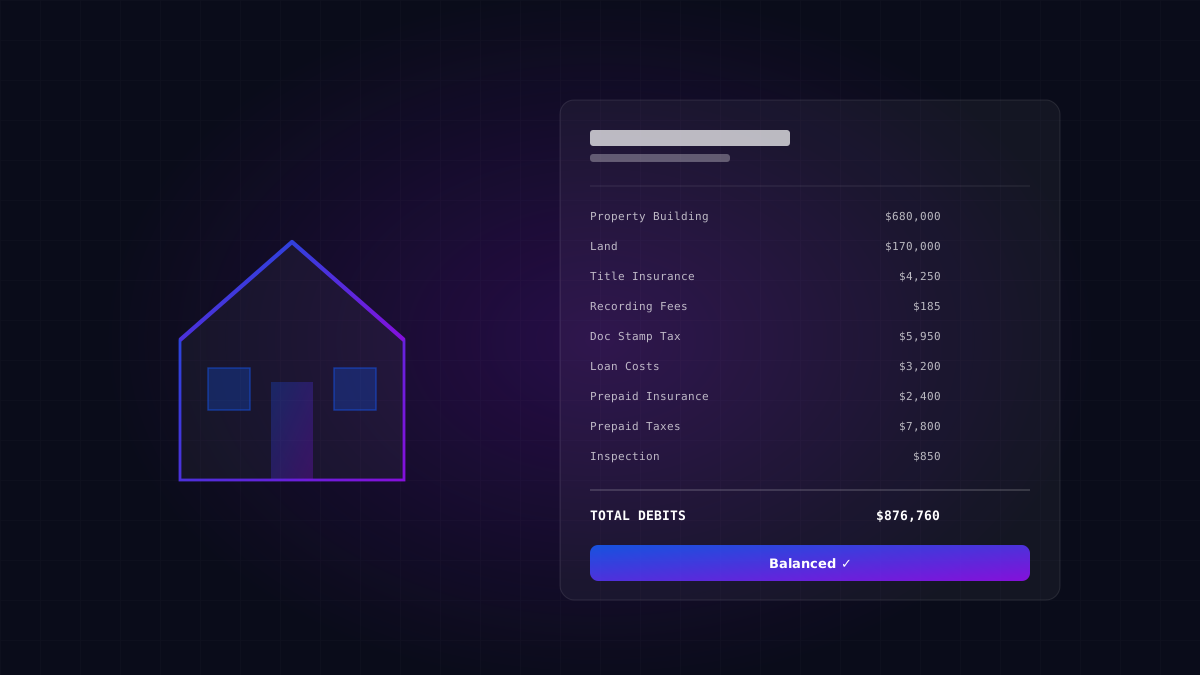
Real example based on an $850,000 property in Miami, Florida:
| Account | Debit | Description |
|---|---|---|
| Building - 7740 NW 2nd Ave | $680,000 | 80% of purchase price |
| Land - 7740 NW 2nd Ave | $170,000 | 20% of purchase price |
| Title Insurance - Capitalized | $4,250 | Owner's title policy |
| Recording Fees | $185 | County recording |
| Documentary Stamp Tax | $5,950 | FL doc stamps on deed |
| Capitalized Loan Costs | $3,200 | Loan origination capitalized |
| Prepaid Insurance | $2,400 | Annual hazard insurance |
| Prepaid Property Tax | $7,800 | Q1 property tax |
| Escrow Deposit | $1,500 | Initial escrow |
| Inspection Fees - Expense | $850 | Home inspection |
| Appraisal Fee | $625 | Lender appraisal |
| Total Debits | $876,760 |
Step 5: Enter the Credits
| Account | Credit | Description |
|---|---|---|
| Mortgage Payable - 7740 NW 2nd Ave | $600,000 | New mortgage loan |
| Earnest Money Deposit | $25,000 | Already on books |
| Property Tax Proration Credit | $1,200 | Seller credit for tax |
| Owner Capital Investment | $250,560 | Cash to close |
| Total Credits | $876,760 |
Step 6: Verify the Entry Balances
Total debits must equal total credits exactly. If they don't, QuickBooks won't let you save the entry. Cross-reference your closing statement and find the discrepancy.
Step 7: Save and Attach the Closing Statement
Before saving, attach the closing statement PDF to the journal entry. This creates an audit trail and saves time when questions come up later. Click Save and close to record the journal entry.
Step 8: Verify in Reports
After saving, run a Balance Sheet report to verify the property appears as a Fixed Asset at the correct basis, the loan appears as a Long-Term Liability, and Owner equity reflects the cash invested.
Common Mistakes When Entering Closing Statements
Mistake 1: Recording the loan as income. The loan is a liability, not income. Record it as a credit to a long-term liability account, never to revenue.
Mistake 2: Not splitting land and building. Land cannot be depreciated. Building can be. Use the county tax assessor's land/building ratio to split.
Mistake 3: Expensing capitalized costs. Title insurance, recording fees, and transfer taxes all add to your basis. Don't expense them.
Mistake 4: Capitalizing expensable items. Inspection fees and credit report fees should typically be expensed, not capitalized.
Mistake 5: Missing the prorations. Property tax prorations and rent prorations are common on closing statements. Missing these creates timing issues.
Mistake 6: Not attaching the closing statement. Always attach the PDF.
Mistake 7: Combining everything into "closing costs". Some bookkeepers create a single "Closing Costs" expense account and dump everything there. This destroys your ability to depreciate properly and creates massive tax problems.
Handling Complex Closing Scenarios
Earnest money already paid. If you already recorded the earnest money deposit, credit the Earnest Money Deposit account on the closing entry to clear it.
Seller concessions. Enter the gross cost as a debit and the seller's contribution as a credit to the same account.
Cash-out refinance. The old loan gets paid off, the new loan is recorded, and any cash distribution goes to Owner Distribution.
1031 exchange. These transactions have specific tax rules. Work with your CPA on these — getting them wrong destroys the 1031 treatment.
Construction loans converting to permanent. The closing entry handles this conversion plus any final draw amounts.
How Long This Takes Manually
- Simple residential purchase (20-30 line items): 1-2 hours
- Complex residential or small commercial (30-40 lines): 2-3 hours
- Full commercial transaction (40-60 lines): 3-5 hours
A bookkeeper handling 10 closings per month spends 20-50 hours just on closing statement entry. This is one of the highest-value automation opportunities in real estate bookkeeping.
When AI Tools Help (And When They Don't)
AI tools work well for: Standard ALTA and HUD-1 statements with typical line items. Repetitive closings where the patterns are similar. Firms processing 5+ closings per month. Initial draft creation that bookkeepers then review.
AI tools struggle with: Highly unusual transactions (1031 exchanges, partial interests, inherited properties). Closing statements with handwritten amendments. Statements requiring specific tax planning judgment. First-time scenarios where there's no historical pattern.
For typical closing statements, AI tools reduce entry time from 2-3 hours to 10-30 minutes. The bookkeeper still reviews everything, but the manual line-by-line entry is eliminated.
Where JournalLink Fits for Real Estate
JournalLink AI is built specifically for complex documents like closing statements. We use Claude AI to read any ALTA or HUD-1 statement, identify every line item, classify each as capitalized or expensed based on IRS rules, and draft a complete journal entry using your real chart of accounts.
For a typical 40-line ALTA statement, JournalLink generates the complete journal entry in about 90 seconds. The bookkeeper reviews each line, makes adjustments, and approves with one click. The entry posts directly to QuickBooks via the API.
The Bottom Line
Recording a closing statement in QuickBooks Online is one of the most complex bookkeeping tasks in real estate. The 30-50 line items, the capitalization rules, the proration calculations, and the long-term tax implications make this work that genuinely matters.
The good news: the framework is consistent. Once you understand the structure (purchase price as fixed asset, loan as liability, costs split between basis and expenses, prepayments as assets), you can handle any closing statement with confidence.
Start by mastering the manual process so you understand what's happening at every line. Then add automation when the volume justifies it. That's the path that builds both skill and scale.
Want to see JournalLink in action? JournalLink is rolling out to a small group of accounting firms, bookkeepers, and teams handling large or recurring imports. Get on the list →
Automate your accounting process. Import without the manual work.
JournalLink is rolling out to a small group of accounting firms, bookkeepers, and teams handling large or recurring imports.